

Shopify to BigCommerce Migration - Step-by-Step Guide & Expert Services
Seamless Shopify to BigCommerce migration is within reach. Move your Shopify store to BigCommerce quickly, securely, and with zero downtime, preserving crucial SEO. Thinking of how to switch from Shopify to BigCommerce? Cart2Cart makes it easy to transfer data. Whether you need a step-by-step guide for a DIY approach or prefer our experts to handle your complete Shopify to BigCommerce migration, we ensure a smooth, secure transition.
What data can be
migrated from Shopify to BigCommerce
-
Products
-
Product Categories
-
Manufacturers
-
Customers
-
Orders
-
Coupons
-
Reviews
-
Blog Posts
- Name, SKU, Full Description, Status, Manufacturer.
- Price, Special Price.
- URL , Meta Title, Meta Description.
- Weight.
- Variants ( SKU, Weight, Price, Special Price ).
- Base Image, Additional Images.
- Quantity, Stock Availability, Manage Stock, Stock Status.
- UPC.
- Name, Description, Status.
- URL , Meta Title, Meta Description.
- Name.
- First Name, Last Name, Email, Telephone.
- Billing Address ( First Name, Last Name, Address 1, Address 2, Country, Zip Code, Telephone ).
- Shipping Address ( First Name, Last Name, Address 1, Address 2, Country, State, City, Zip Code, Telephone ).
- Order Status, Order Products ( Name, SKU, Option ), Product Price, Quantity, SubTotal Price, Discount Price, Shipping Price, Total Price, Order Comments.
- Billing Address ( First Name, Last Name, Address 1, Address 2, Country, State, City, Zip Code, Telephone ).
- Shipping Address ( First Name, Last Name, Address 1, Address 2, Country, State, City, Zip Code, Telephone ).
- Name, Coupon Code, Type Discount, Discount Amount.
- Created Date, Status, Rate, User Name, Comment.
- Title, Full Description, Availability, Published Time, Author, Post Redirects.
- Images.
- Name, SKU, Full Description, Status, Manufacturer.
- Price, Special Price.
- URL , Meta Title, Meta Description.
- Weight.
- Variants ( SKU, Weight, Price, Special Price ).
- Base Image, Additional Images.
- Quantity, Stock Availability, Manage Stock, Stock Status.
- UPC.
- Name, Description, Status.
- URL , Meta Title, Meta Description.
- Name.
- First Name, Last Name, Email, Telephone.
- Billing Address ( First Name, Last Name, Address 1, Address 2, Country, Zip Code, Telephone ).
- Shipping Address ( First Name, Last Name, Address 1, Address 2, Country, State, City, Zip Code, Telephone ).
- Order Status, Order Products ( Name, SKU, Option ), Product Price, Quantity, SubTotal Price, Discount Price, Shipping Price, Total Price, Order Comments.
- Billing Address ( First Name, Last Name, Address 1, Address 2, Country, State, City, Zip Code, Telephone ).
- Shipping Address ( First Name, Last Name, Address 1, Address 2, Country, State, City, Zip Code, Telephone ).
- Name, Coupon Code, Type Discount, Discount Amount.
- Created Date, Status, Rate, User Name, Comment.
- Title, Full Description, Availability, Published Time, Author, Post Redirects.
- Images.
Products
Estimate your Migration Cost
To determine your Shopify to BigCommerce migration price, click the button below. The migration price may vary depending on the number of data types and the additional migration options selected.
How to Migrate from Shopify to BigCommerce In 3 Steps?
Connect your Source & Target carts
Choose Shopify and BigCommerce from the drop-down lists & provide the stores’ URLs in the corresponding fields.
Select the data to migrate & extra options
Choose the data you want to migrate to BigCommerce and extra options to customise your Shopify to BigCommerce migration.
Launch your Demo/Full migration
Run a free Demo to see how the Cart2Cart service works, and when happy - launch Full migration.
Migrate Shopify to BigCommerce: A Comprehensive How-To Guide
Seamlessly Migrate Your E-commerce Store from Shopify to BigCommerce
Are you ready to elevate your e-commerce presence by migrating from Shopify to BigCommerce? Replatforming your online store can feel daunting, but with the right strategy and tools, this transition can be a smooth and rewarding experience. BigCommerce offers robust features for growing businesses, making it a compelling choice for merchants seeking greater scalability, flexibility, and advanced functionalities.
This comprehensive guide will walk you through every essential step of moving your store's data from Shopify to BigCommerce using a trusted migration solution. We'll cover everything from crucial prerequisites to post-migration best practices, ensuring your valuable products, customer data, orders, and SEO rankings remain intact. Get ready to unlock new potential for your online business with a seamless data transfer.
Prerequisites for Migration
Before you embark on your migration journey, proper preparation of both your source (Shopify) and target (BigCommerce) stores is crucial for a successful data transfer and to maintain data integrity. Neglecting these steps can lead to data loss or operational disruptions.
Preparing Your Shopify (Source) Store
- Disable Notifications: It is highly recommended to disable all notifications (email, SMS, etc.) in your Shopify store during the migration process. This prevents customers from receiving confusing messages about orders or account changes that are being transferred.
- Review 'Pause and Build' Plan: Be aware that if your Shopify store is on a 'Pause and Build' plan, it may block new orders, which could impact the completeness of your order data during migration. Ensure your store is in an active state.
- Handle Reviews: Shopify's native review system often requires a dedicated app for migration. If you heavily rely on product reviews, you may need an additional solution (e.g., the AirReviews app) or a specialized service to ensure they are transferred correctly.
- Backup Your Data: Always perform a full backup of your Shopify store's data, including products, customer information, and order history, before initiating any migration. This serves as a safety net.
For more detailed information on preparing your source store, refer to our guide on How to prepare Source store for migration?
Preparing Your BigCommerce (Target) Store
- HTTPS Requirement: BigCommerce strictly requires HTTPS for all stores. Ensure your BigCommerce store is configured with a valid SSL certificate before migration.
- API Access: BigCommerce migrations primarily rely on API connections. You'll need to set up a custom API account in your BigCommerce store to generate the necessary API credentials (Client ID, Access Token, API Path). This involves configuring specific API scopes to grant the migration tool the required permissions.
- Empty Target Store (Optional but Recommended): If this is a fresh BigCommerce store, it's often best to migrate to an empty platform. If you have existing data, consider the 'Clear Target' option during migration to avoid conflicts, though this will permanently delete current BigCommerce data.
For guidance on setting up your target store, see How to prepare Target store for migration?
Performing the Migration: A Step-by-Step Guide
Now that your stores are prepped, let's dive into the step-by-step process of migrating your e-commerce data from Shopify to BigCommerce using an automated migration wizard.
Step 1: Start Your Migration
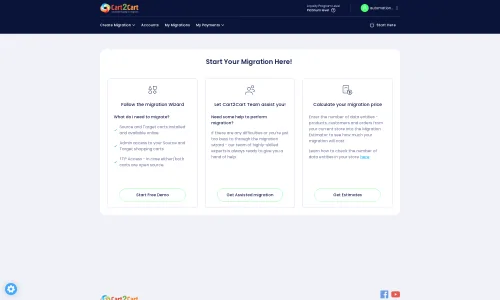
Begin by accessing the migration wizard. Here, you'll typically be presented with options to start a new migration, request a guided service, or calculate your migration cost. Choose to start a new migration to proceed with the automated tool.
Step 2: Connect Your Source Store (Shopify)
In this crucial step, you'll specify Shopify as your source platform. You'll need to provide your Shopify store's URL. For connection, it's generally recommended to use the dedicated Cart2Cart Store Migration App from the Shopify App Store for a streamlined process. Alternatively, you can choose to provide API access credentials by creating a custom app in Shopify and generating an Admin API access token with the necessary API scopes.
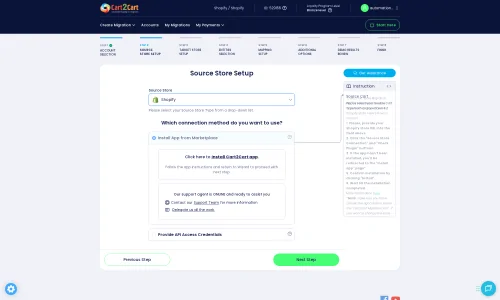
For detailed instructions on obtaining API credentials, consult The Short & Essential Guide to Access Credentials for Cart2Cart.
Step 3: Connect Your Target Store (BigCommerce)
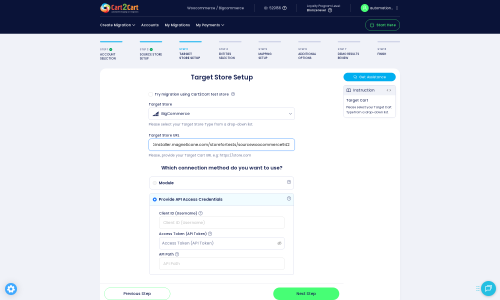
Next, select BigCommerce as your target platform. You will then need to enter your BigCommerce store's URL and provide the required API connection fields: Client ID, Access Token, and API Path. These credentials are generated within your BigCommerce admin panel by creating a custom API account with appropriate read/write scopes for the entities you plan to migrate. This ensures the migration tool has secure access to transfer your data.
Step 4: Select Entities for Migration
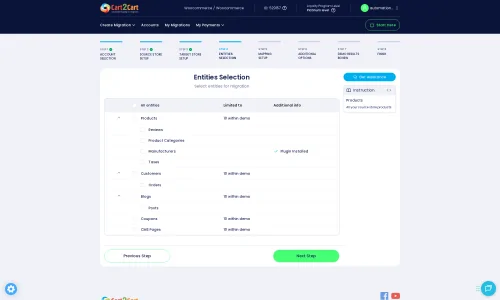
This step allows you to choose exactly which types of data you want to move from Shopify to BigCommerce. You can select all available entities or handpick specific ones based on your needs. Commonly migrated entities include:
- Products: Including SKUs, variants, images, descriptions, and product categories.
- Customers: With all relevant customer data.
- Orders: Historical order data, order statuses, and associated customer information.
- CMS Pages: Static content pages.
- Blogs and Blog Posts: For content marketing continuity.
- Coupons: Promotional codes.
Shopify also supports Gift Cards and Price Rules, while BigCommerce supports Manufacturers and Products Attributes Options. Ensure you select all the data that is critical for your new store's operation.
Step 5: Configure Additional Migration Options
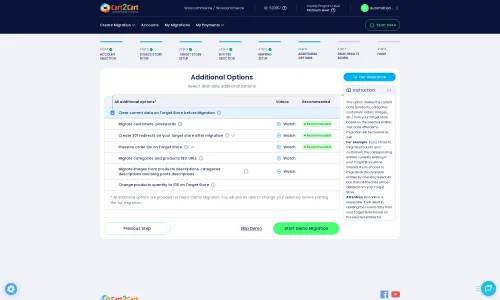
Enhance your data transfer with a range of additional options designed to preserve data integrity and optimize your new store. These include:
- Preserve Order, Product, Category, and Customer IDs: Maintain existing IDs for seamless record-keeping and integration with third-party tools. Learn more about How Preserve IDs options can be used?
- Create 301 SEO URLs: Crucial for maintaining your SEO rankings and link equity by automatically redirecting old Shopify URLs to new BigCommerce URLs.
- Migrate Images in Description: Ensure product descriptions and CMS pages retain their visual content.
- Clear Target Store Data: If you're migrating to an existing BigCommerce store, this option will remove all current data before the migration begins. Be cautious with this powerful feature. Read about Clear current data on Target store before migration option.
- Migrate Groups to Tags: Useful for organizing customer segments or product classifications.
- Create Variants from Attributes: A specific BigCommerce target option to properly structure product variants.
Step 6: Map Data Fields
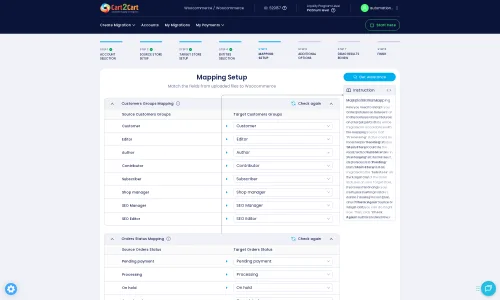
Data mapping is a critical step to ensure that fields from your Shopify store correctly correspond to the equivalent fields in BigCommerce. This typically involves mapping customer groups and order statuses. For example, you'll match Shopify's customer roles (e.g., 'Customer') to BigCommerce's equivalents, and align order statuses (e.g., 'Pending payment', 'Processing') to ensure continuity in your order management workflow.
Step 7: Initiate the Free Demo or Full Migration
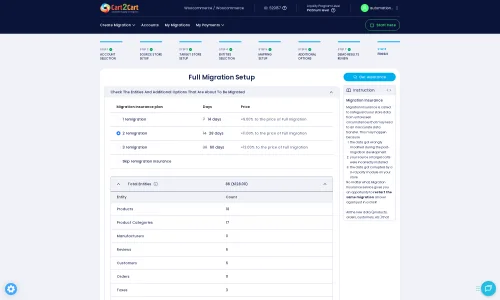
Before committing to the full data transfer, it's highly recommended to perform a free demo migration. This allows you to migrate a limited number of entities (e.g., 10-20 products, customers, orders) to your BigCommerce store. The demo helps you review the migration quality, check data integrity, and ensure all settings are configured as expected. Once satisfied, you can proceed with the full migration.
Consider opting for a Migration Insurance Service, which offers additional remigrations within a specified period, providing peace of mind. Find out How Migration Insurance works?
Post-Migration Steps
After your data has successfully been transferred to BigCommerce, the migration process isn't quite finished. These crucial post-migration steps ensure your new store is fully operational, optimized, and ready for your customers.
1. Thorough Data Verification
- Products: Check product images, descriptions, SKUs, variants, prices, and stock levels.
- Customers: Verify customer accounts, addresses, and order history.
- Orders: Review recent orders and their statuses to ensure accurate transfer.
- Content: Inspect CMS pages, blog posts, and categories for correct formatting and display.
2. Configure BigCommerce Store Settings
- Theme and Design: Customize your BigCommerce theme to match your brand's aesthetic.
- Payment Gateways: Set up and test your preferred payment methods.
- Shipping Zones and Rates: Configure shipping options accurately.
- Taxes: Set up your tax rules according to your location and product types.
- Third-Party Apps: Install and configure any necessary BigCommerce apps or integrations for marketing, analytics, accounting, etc.
3. Implement and Verify 301 Redirects
If you didn't use the 'Create 301 SEO URLs' option during migration, or if you have specific custom URLs, manually set up 301 redirects to ensure old Shopify links point to their new BigCommerce counterparts. This is vital for preserving your SEO rankings, preventing broken links, and maintaining a positive user experience. Test all critical redirects.
4. Conduct Comprehensive Testing
- Checkout Process: Perform test purchases from product selection to payment confirmation.
- Search Functionality: Ensure products are easily discoverable.
- Customer Accounts: Test login, password resets, and order history access.
- Forms: Verify contact forms and newsletter sign-ups.
- Responsiveness: Check your store's appearance and functionality across various devices (desktop, mobile, tablet).
5. Update DNS and Go Live
Once you are confident that your BigCommerce store is fully functional and all data is accurate, update your domain's DNS records to point to your new BigCommerce store. Plan this step carefully to minimize downtime for your customers. After updating DNS, monitor your site closely for any issues.
6. Final SEO Check
Beyond redirects, ensure your BigCommerce store has proper meta titles, descriptions, and alt tags. Submit your new sitemap to search engines (Google Search Console, Bing Webmaster Tools) and monitor for any crawl errors or changes in search engine visibility.
7. Decommission Shopify (Optional)
After confirming your BigCommerce store is running smoothly, you can consider canceling your Shopify subscription. Ensure you've downloaded any remaining data you might need before doing so.
Conclusion
Migrating from Shopify to BigCommerce is a significant undertaking that, when executed correctly, can pave the way for enhanced growth and operational efficiency. By following this detailed guide and leveraging automated tools, you can achieve a seamless transition, safeguard your data, and set your business up for success on its new platform. If you encounter challenges or prefer expert assistance, consider professional migration services to ensure a worry-free replatforming experience. Ready to make the switch? Start your BigCommerce journey today!
Ways to perform migration from Shopify to BigCommerce
Automated migration
Just set up the migration and choose the entities to move – the service will do the rest.
Try It Free
Data Migration Service Package
Delegate the job to the highly-skilled migration experts and get the job done.
Choose Package

Benefits for Store Owners

Benefits for Ecommerce Agencies
Choose all the extra migration options and get 40% off their total Price

The design and store functionality transfer is impossible due to Shopify to BigCommerce limitations. However, you can recreate it with the help of a 3rd-party developer.

Your data is safely locked with Cart2Cart
We built in many security measures so you can safely migrate from Shopify to BigCommerce. Check out our Security Policy
Server Security
All migrations are performed on a secure dedicated Hetzner server with restricted physical access.Application Security
HTTPS protocol and 128-bit SSL encryption are used to protect the data being exchanged.Network Security
The most up-to-date network architecture schema, firewall and access restrictions protect our system from electronic attacks.Data Access Control
Employee access to customer migration data is restricted, logged and audited.Frequently Asked Questions
Does my Shopify store's design or theme transfer to BigCommerce?
Will my Shopify store go offline during migration to BigCommerce?
What determines the cost of a Shopify to BigCommerce migration service?
How long does a Shopify to BigCommerce store migration typically take?
How can I keep SEO rankings when switching from Shopify to BigCommerce?
How is data accuracy ensured after migrating from Shopify to BigCommerce?
Is data migration from Shopify to BigCommerce secure?
What data entities can be migrated from Shopify to BigCommerce?
Is an automated tool or a migration expert better for Shopify to BigCommerce?
Can customer passwords be transferred during Shopify to BigCommerce migration?
Why 150.000+ customers all over the globe have chosen Cart2Cart?
100% non-techie friendly
Cart2Cart is recommended by Shopify, WooCommerce, Wix, OpenCart, PrestaShop and other top ecommerce platforms.
Keep selling while migrating
The process of data transfer has no effect on the migrated store. At all.
24/7 live support
Get every bit of help right when you need it. Our live chat experts will eagerly guide you through the entire migration process.
Lightning fast migration
Just a few hours - and all your store data is moved to its new home.
Open to the customers’ needs
We’re ready to help import data from database dump, csv. file, a rare shopping cart etc.
Recommended by industry leaders
Cart2Cart is recommended by Shopify, WooCommerce, Wix, OpenCart, PrestaShop and other top ecommerce platforms.
Trusted by eCommerce dominators since 2009




Migration from Shopify to BigCommerce was exactly what I need it. Customers information, orders, products description and images were displayed in my new platform perfectly. Additionally, the support team were very helpful and patience while I was doing all of this process. I highly recommend it!
Review source

Great Solution! Excellent Support team which helped to migrate my store data from Magento to Bigcommerce in no time. Cart2Cart developed a custom solution to which helped me to Migrate my Blog Data too. I will surely use their service on my upcoming projects.
Review source
Working with Cart2Cart on a recent Yahoo Store to BigCommerce Store migration was a pleasure. The support was very helpful in getting to my end solution. I would definitely recommend their service for anyone looking to migrate data between these platforms.
Review source
Solid work on the cart2cart migration from Magento to BigCommerce! Also, they helped me a lot for the data re-migration due to an accidental deletion on BigCommerce I definitely would recommend Cart2Cart 🙂
Review source
I was skeptical at first, but now I’m using Cart2Cart again! Cart2Cart saved us a lot of time by aiding in the migration of our client, Tool Accessory Depot from Magento to BigCommerce. We are now in the process of moving another clients store from OSCommerce to 3DCart.
Cart2Cart support was extremely helpful, and was diligent in making sure the migration completed correctly, as they said it would.
Review source
We have migrated from creloaded 6.4 to Bigcommerce.com shopping cart.
the Cart2Cart migration is outstanding. Provided quicky and easy transfer of our customer, catagories and products in minutes…
thanks for the great support you have provided us and the quick service.
Review source
So now I have a perfect copy of my Shopify store on my Woocommerce platform. All within 2 days and I didn’t have to code anything – the migration took just a few clicks – fully automated. Ok, that’s it I just like when I see somebody really care about your business so I felt like I’d let the world know about my experience with this company
Review source
Excellent Support for the non expert who needs a lot of assistance they spent as much time as I needed to insure I got my migration. The upload went well after the Demo. Customer service was there when I had questions or issues to fine tune after purchase. I would recommend if you need to import / migrate your Products from Shopify to Woocommerce in Word Press as I did.
Review source
Just tried a Demo migration for Cart2Cart to migrate the shop of a Shopify website into a WordPress site with WooCommerce enabled. I did have a small technical snag when setting up the Connection Bridge, however Tech Support was on the spot with quick service and even did a little dirty work for me.
So far, so great.
Review source


