

X-Cart to PrestaShop Migration - Step-by-Step Guide & Expert Services
X-Cart to PrestaShop migration made easy with Cart2Cart. Seamlessly move X-Cart store to PrestaShop, preserving SEO and ensuring zero downtime. Our secure, swift service helps you switch from X-Cart to PrestaShop with confidence. We expertly transfer data, letting you focus on business growth. Whether you seek a comprehensive step-by-step guide for DIY or prefer our managed service, achieving your perfect X-Cart to PrestaShop migration is now effortless. Trust the experts for a smooth transition.
What data can be
migrated from X-Cart to PrestaShop
-
Products
-
Product Categories
-
Manufacturers
-
Taxes
-
Customers
-
Orders
-
Coupons
-
Reviews
-
Multistore
-
Multiple Languages
- Cost.
- Name, SKU, Short Description, Full Description, Status, Images in Description, Manufacturer, Tax Class.
- Price, Special Price, Tier Price.
- URL, Meta Title, Meta Keywords, Meta Description.
- Product Image, Additional Images.
- Quantity.
- Weight, Width, Height.
- Related Products .
- Options(Name, Price), Product Attributes(Name, Values).
- Product Variants(SKU, Weight, Quantity, Images, Price, Special Price, Additional image).
- Downloadable Products(Files, Expiration Date).
- Name, Description, Status.
- URL, Meta Title, Meta Description, Meta Keywords.
- Category Images.
- Name, Description, Manufacturer Images.
- Tax Class(Name), Tax Rates(Tax Name, Percent), Tax Rules(Tax Rate).
- ID, First Name, Last Name, Email, Customer Group, Created Date.
- Customer Billing Address(First Name, Last Name, Company, Address 1, Address 2, Country, State, City, Zip Code, Telephone).
- Customer Shipping Address(First Name, Last Name, Company, Address 1, Address 2, Country, State, City, Zip Code, Telephone).
- ID, Order Date, Order Status, Order Products(Name, SKU), Product Price, Quantity, SubTotal Price, Discount Price, Tax Price, Shipping Price, Total Price, Order Comments, Order Status History.
- Customer Name, Email, Billing Address(First Name, Last Name, Company, Address 1, Address 2, Country, State, City, Zip Code, Telephone).
- Shipping Address(First Name, Last Name, Company, Address 1, Address 2, Country, State, City, Zip Code, Telephone).
- Name, Description, Status, Uses Per Coupon, Type Discount, Discount Amount, Coupon Expire Date.
- Created Date , Rate , User Name , Comment , Product .
- Yes.
- Yes.
- Cost.
- Name, SKU, Short Description, Full Description, Status, Images in Description, Manufacturer, Tax Class.
- Price, Special Price, Tier Price.
- URL, Meta Title, Meta Keywords, Meta Description.
- Product Image, Additional Images.
- Quantity.
- Weight, Width, Height.
- Related Products .
- Options(Name, Price), Product Attributes(Name, Values).
- Product Variants(SKU, Weight, Quantity, Images, Price, Special Price, Additional image).
- Downloadable Products(Files, Expiration Date).
- Name, Description, Status.
- URL, Meta Title, Meta Description, Meta Keywords.
- Category Images.
- Name, Description, Manufacturer Images.
- Tax Class(Name), Tax Rates(Tax Name, Percent), Tax Rules(Tax Rate).
- ID, First Name, Last Name, Email, Customer Group, Created Date.
- Customer Billing Address(First Name, Last Name, Company, Address 1, Address 2, Country, State, City, Zip Code, Telephone).
- Customer Shipping Address(First Name, Last Name, Company, Address 1, Address 2, Country, State, City, Zip Code, Telephone).
- ID, Order Date, Order Status, Order Products(Name, SKU), Product Price, Quantity, SubTotal Price, Discount Price, Tax Price, Shipping Price, Total Price, Order Comments, Order Status History.
- Customer Name, Email, Billing Address(First Name, Last Name, Company, Address 1, Address 2, Country, State, City, Zip Code, Telephone).
- Shipping Address(First Name, Last Name, Company, Address 1, Address 2, Country, State, City, Zip Code, Telephone).
- Name, Description, Status, Uses Per Coupon, Type Discount, Discount Amount, Coupon Expire Date.
- Created Date , Rate , User Name , Comment , Product .
- Yes.
- Yes.
Products
Estimate your Migration Cost
The price of your migration depends on the volume of data to migrate and the additional migration options you pick. To check the price for X-Cart to PrestaShop conversion, click “Get estimates” and follow the suggested steps.
How to Migrate from X-Cart to PrestaShop In 3 Steps?
Connect your Source & Target carts
Choose X-Cart and PrestaShop from the drop-down lists & provide the stores’ URLs in the corresponding fields.
Select the data to migrate & extra options
Choose the data you want to migrate to PrestaShop and extra options to customise your X-Cart to PrestaShop migration.
Launch your Demo/Full migration
Run a free Demo to see how the Cart2Cart service works, and when happy - launch Full migration.
Migrate X-Cart to PrestaShop: The Definitive Guide for a Seamless E-commerce Transition
Elevate Your E-commerce: Seamlessly Migrate from X-Cart to PrestaShop
Considering a platform shift for your online store? Migrating from X-Cart to PrestaShop can unlock new growth opportunities, offering enhanced flexibility, a vibrant community, and a powerful feature set for your growing business. This comprehensive guide will walk you through every critical step of transitioning your e-commerce store, ensuring a smooth and efficient data transfer. We'll cover everything from initial preparations to post-migration checks, helping you replatform with confidence and minimal disruption.
Prerequisites for a Successful Migration
Before embarking on your X-Cart to PrestaShop migration journey, it’s crucial to lay a solid foundation. Proper preparation safeguards your valuable data and ensures a streamlined transition:
- Backup Your Data: This is non-negotiable. Always create a full backup of your X-Cart store's database and files. This serves as a safety net in case of any unforeseen issues during the data transfer process.
- Prepare Your PrestaShop Store: Ensure you have a fresh installation of PrestaShop ready on your hosting. It's recommended to start with an empty PrestaShop instance to avoid data conflicts. Learn more about how to prepare your target store for migration.
- Gather Access Credentials: You will need administrator access details for both your X-Cart and PrestaShop stores. This typically includes admin URLs, usernames, and passwords. For bridge-based migrations, FTP/SFTP access to the root directories of both platforms will also be necessary. For a detailed guide, refer to The Short & Essential Guide to Access Credentials for Cart2Cart.
- Understand Plugin Requirements: Both X-Cart and PrestaShop connect via a 'bridge only' method, necessitating the installation of specific modules. For X-Cart, the Cart2Cart X-Cart Migration module is required, and for PrestaShop, the Cart2Cart Universal PrestaShop Migration module. These plugins facilitate secure communication between your stores and the migration tool.
- Plan for Minimal Downtime: While most of the migration process occurs in the background, carefully plan when you will update your DNS settings and make the switch. A well-executed migration can result in virtually zero downtime for your customers.
By meticulously addressing these prerequisites, you set the stage for a successful and hassle-free data migration from X-Cart to PrestaShop.
Performing the Migration: A Step-by-Step Guide
Follow these detailed steps to transfer your X-Cart store's data to PrestaShop using an automated migration wizard:
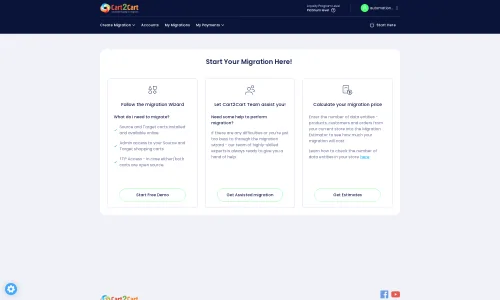
Step 1: Initiate Your Migration
Your migration journey begins by selecting your source and target platforms within the migration wizard. Start by navigating to the migration tool's interface.
Step 2: Configure Your X-Cart Source Store
Next, you will set up the connection to your X-Cart store, which will serve as the source for your data. Select X-Cart as your Source Cart. Provide your X-Cart store's Admin URL. Since X-Cart utilizes a 'Bridge only' connection method, you will be prompted to download a Connection Bridge file. Upload the 'bridge2cart' folder from this downloaded ZIP file to the root directory of your X-Cart installation via FTP/SFTP. This step is crucial for securely linking your X-Cart store to the migration tool. Ensure the required Cart2Cart X-Cart Migration module is active. For assistance with uploading the bridge, consult What is a root folder and where can I find it?.
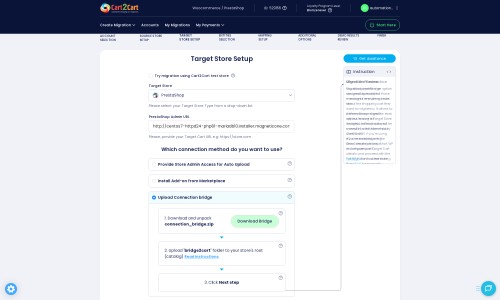
Step 3: Set Up Your PrestaShop Target Store
Now, it's time to configure your destination platform. Select PrestaShop as your Target Cart. Input your PrestaShop store's Admin URL. Similar to the source setup, PrestaShop also requires a 'Bridge only' connection. You'll need to download the Connection Bridge, extract the 'bridge2cart' folder, and upload it to the root directory of your PrestaShop installation via FTP/SFTP. This establishes the secure link for data transfer. Verify that the Cart2Cart Universal PrestaShop Migration module is correctly installed.
Step 4: Select Data Entities for Transfer
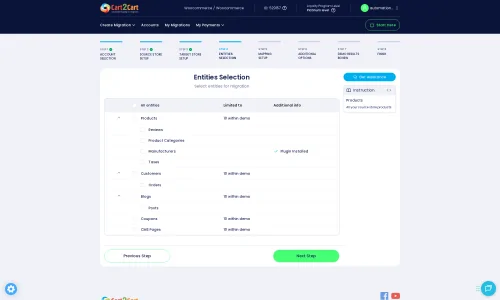
This critical step allows you to define exactly which data you wish to move from X-Cart to PrestaShop. The migration wizard typically presents a checklist of common e-commerce entities. You can choose to migrate all available data or selectively pick specific items. Key entities you can transfer include:
- Products: This includes all your SKUs, product details, images, prices, and inventory levels. For X-Cart, options like 'Create Variants from Attributes' are available for accurate product representation.
- Product Categories: Your store's organizational structure for products.
- Product Manufacturers: Data related to the brands or manufacturers of your products.
- Product Reviews: Valuable social proof and customer feedback.
- Customers: Customer accounts and associated details.
- Orders: Historical transaction data, including order statuses and items purchased.
- Invoices: Billing documentation linked to orders.
- Taxes: Your store's tax rules and rates.
- Stores: If you operate multiple store views.
- Coupons: Promotional discount codes.
- CMS Pages: Static content pages like 'About Us' or 'Contact Us'.
Step 5: Configure Additional Migration Options
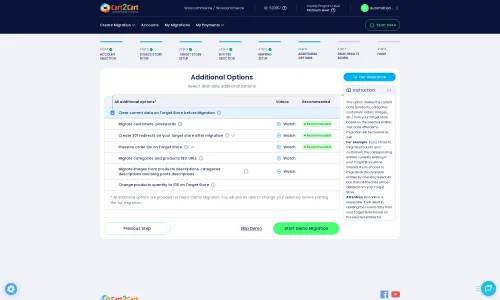
Enhance your migration by selecting various additional options that refine how your data is transferred. These settings are crucial for maintaining data integrity, SEO rankings, and user experience:
- Clear Target Store Data: The 'Clear Target' option (a PrestaShop target option) allows you to remove any existing data on your PrestaShop store before the migration. This is often recommended for fresh installations. Learn more about clearing target store data.
- Preserve IDs: Options like 'Preserve Product IDs', 'Preserve Category IDs', 'Preserve Orders IDs', and 'Preserve Customers IDs' help maintain the original IDs from your X-Cart store, which can be important for external integrations or historical records. Understand how Preserve IDs options can be used.
- Password Migration: Enable 'Password Migration' to transfer customer passwords, allowing existing customers to log in to your new PrestaShop store without needing to reset their credentials.
- Create 301 SEO URLs: Crucial for maintaining your search engine rankings and link equity. This option automatically creates 301 redirects from your old X-Cart URLs to the new PrestaShop URLs, preventing broken links and preserving SEO value.
- Migrate Images in Description: If your product or category descriptions contain embedded images, select this option to ensure they are also transferred to PrestaShop.
Step 6: Map Data Fields
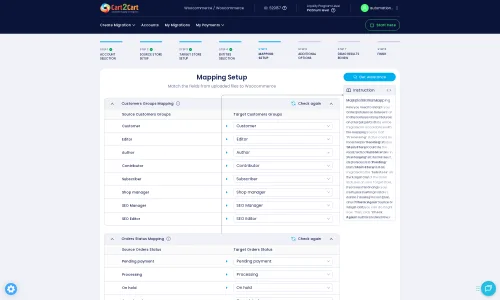
To ensure data consistency and accuracy, the migration wizard provides a mapping setup. Here, you will match corresponding customer groups and order statuses from your X-Cart store to their equivalents in PrestaShop. This step is vital for maintaining customer segmentation and tracking order fulfillment correctly in your new platform.
Step 7: Run Demo & Full Migration
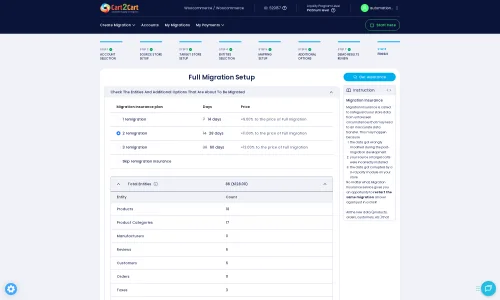
Before committing to the full data transfer, it's highly recommended to perform a Migration Preview Service (demo migration). This transfers a limited number of entities, allowing you to review the data, identify any potential issues, and ensure everything looks correct in your new PrestaShop store. Once satisfied with the demo, you can proceed with the full migration. Consider adding a Migration Insurance Service, which offers additional remigrations for peace of mind. Learn more about how Migration Insurance works.
Post-Migration Steps
Once your X-Cart to PrestaShop data transfer is complete, a few crucial post-migration steps are necessary to ensure your new store is fully operational and optimized:
- Thorough Data Verification: Immediately after the migration, conduct a meticulous review of your PrestaShop store. Check random samples of products (SKUs, variants, images, descriptions), customer accounts, order histories, reviews, categories, and CMS pages to ensure all data has transferred accurately and completely.
- Configure SEO Settings: If you enabled 301 redirects during migration, verify they are functioning correctly. Update your sitemap and submit it to search engines. Check your product and category metadata to ensure it's optimized for your new platform. This helps preserve your SEO rankings and link equity.
- Install and Customize Theme & Modules: Apply your chosen PrestaShop theme and install any necessary modules (plugins) to replicate the functionality and appearance of your old X-Cart store, or to introduce new features. Test all installed components for compatibility.
- Test Store Functionality: Perform comprehensive testing of your entire PrestaShop store. This includes placing test orders, checking payment gateways, verifying shipping calculations, testing customer account creation and logins, search functionality, and contact forms.
- Update DNS Settings: Once you are confident that your PrestaShop store is fully functional and ready, update your domain's DNS records to point to your new PrestaShop installation. This will make your new store live to the public.
- Notify Customers: Inform your customer base about the new store and any changes or improvements. This is also a good opportunity to re-engage them.
- Consider Recent Data Migration: If you continued to receive orders or customer registrations on your old X-Cart store during the migration period, you might consider a Recent Data Migration Service to transfer only the newly added data.
By diligently completing these post-migration tasks, you can confidently launch your new PrestaShop store, providing a fresh and enhanced user experience for your customers while maintaining robust data integrity.
Ways to perform migration from X-Cart to PrestaShop
Automated migration
Just set up the migration and choose the entities to move – the service will do the rest.
Try It Free
Data Migration Service Package
Delegate the job to the highly-skilled migration experts and get the job done.
Choose Package

Benefits for Store Owners

Benefits for Ecommerce Agencies
Choose all the extra migration options and get 40% off their total Price

The design and store functionality transfer is impossible due to X-Cart to PrestaShop limitations. However, you can recreate it with the help of a 3rd-party developer.

Your data is safely locked with Cart2Cart
We built in many security measures so you can safely migrate from X-Cart to PrestaShop. Check out our Security Policy
Server Security
All migrations are performed on a secure dedicated Hetzner server with restricted physical access.Application Security
HTTPS protocol and 128-bit SSL encryption are used to protect the data being exchanged.Network Security
The most up-to-date network architecture schema, firewall and access restrictions protect our system from electronic attacks.Data Access Control
Employee access to customer migration data is restricted, logged and audited.Frequently Asked Questions
How can I protect my SEO rankings when moving from X-Cart to PrestaShop?
Will my X-Cart store experience downtime during migration to PrestaShop?
Will my X-Cart store's design and theme transfer automatically to PrestaShop?
Should I use an automated tool or hire an expert for X-Cart to PrestaShop migration?
Is my X-Cart store data secure during the PrestaShop migration process?
How can I validate the accuracy of my data after migrating from X-Cart to PrestaShop?
What is the typical timeline for an X-Cart to PrestaShop migration?
What factors determine the cost of migrating from X-Cart to PrestaShop?
Can customer passwords be transferred when migrating from X-Cart to PrestaShop?
What data entities can be migrated from X-Cart to PrestaShop?
Why 150.000+ customers all over the globe have chosen Cart2Cart?
100% non-techie friendly
Cart2Cart is recommended by Shopify, WooCommerce, Wix, OpenCart, PrestaShop and other top ecommerce platforms.
Keep selling while migrating
The process of data transfer has no effect on the migrated store. At all.
24/7 live support
Get every bit of help right when you need it. Our live chat experts will eagerly guide you through the entire migration process.
Lightning fast migration
Just a few hours - and all your store data is moved to its new home.
Open to the customers’ needs
We’re ready to help import data from database dump, csv. file, a rare shopping cart etc.
Recommended by industry leaders
Cart2Cart is recommended by Shopify, WooCommerce, Wix, OpenCart, PrestaShop and other top ecommerce platforms.
Trusted by eCommerce dominators since 2009





This was the only service that worked for X-Cart5 to PrestaShop migration. Other paid service (even a paid “pro” module on PrestaShop store) revealed completely useless. With Cart2Cart I was able to test migration and quickly see any issue on the target shop. I recommend it
Review source

Great service which allowed us to transfer products, customers and orders database of our customer from Virtuemart to Prestashop 2 times: a first time in order to prepare the new website and a second time in order to update new customers and new orders placed in the meantime. Without Cart2Cart this would have been more complicated… A great customer service also, very available and very competent. Thanks to them
Review source

Great Service, and great support team. Used for a migration from Magento to PrestaShop, it works like a charm.
Review source

Tiene un servicio online que me ha salvado la vida. Y de momento todo a funcionado perfecto migrando de woocommerce a prestashop. Me han facilitado la vida y me han alegrado el día
Review source
Cart2Cart helped me with several PrestaShop migrations. They always give good support, ready to listen and help if needed. I migrated several stores with 15000 products, with no problem.
This is the best migration tool I know.
Review source
It’s an easy system to clone products on different platforms. I use it as tool to migrate things from magento to PRestashop and it works perfectly. I would recommend it
Review source
Working with pleasure with you, did a big migration from old prestashop to the latest version, all migrated with no issues and delivered in time! Thanks a lot! Saved me also a lot of time.
Review source
Great bussiness, and extraordinary on line help, great tech chat, really great service, from old shop Zen cart to a superb prestashop 1.6x. Thanks a lot, save time and money… I recommend for sure
Review source
I was in to move from the Magento to Prestashop.The migration was easy to set up and get running, there was a small problem with the move but the team acted quickly and resolved the issue. Excellent service.
Review source
Brilliant…I needed to migrate from oscommerce to Prestashop and Cart2cart made it so very easy. I was doubtful at first so I ran the on-line demo which put me at ease as it so worked well that I went to the next stage and migrated the entire shop. Completed in minutes, no need for any support just followed the simple on-screen instructions and that’s all there was to it. Thank you it was worth every penny
Review source


